Batch review software for manufacturing
The whole batch, on one screen. The data for an investigation in minutes, not weeks.
enCompass360° reads the systems your plant already runs, lines their records up on one time axis, and shows a batch the way a reviewer needs to see it: what happened, when, and what was happening around it. Nothing in the source systems is changed by the batch review. On the reference deployment, batch investigations went from weeks to minutes.
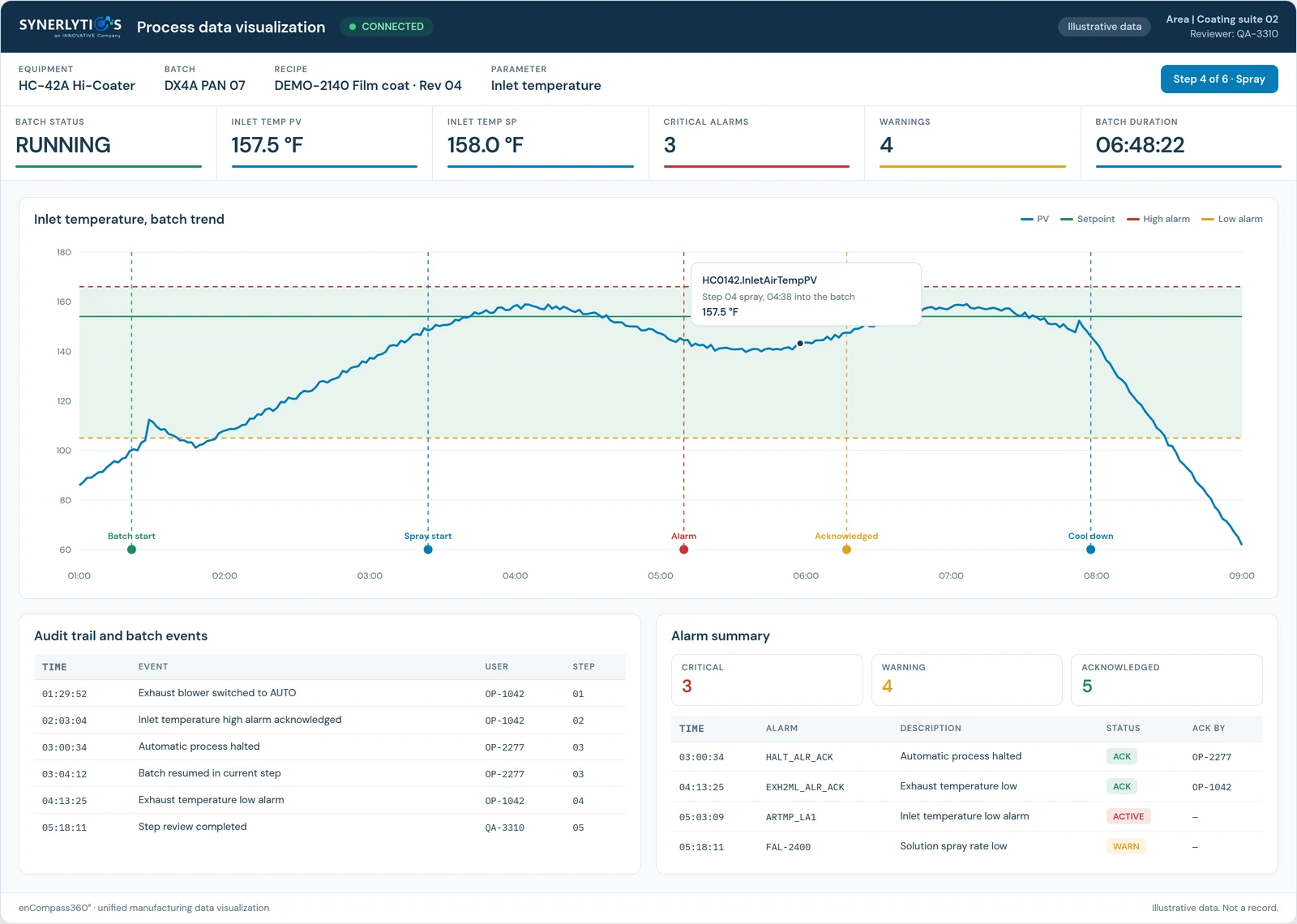
The screen reviewers work in
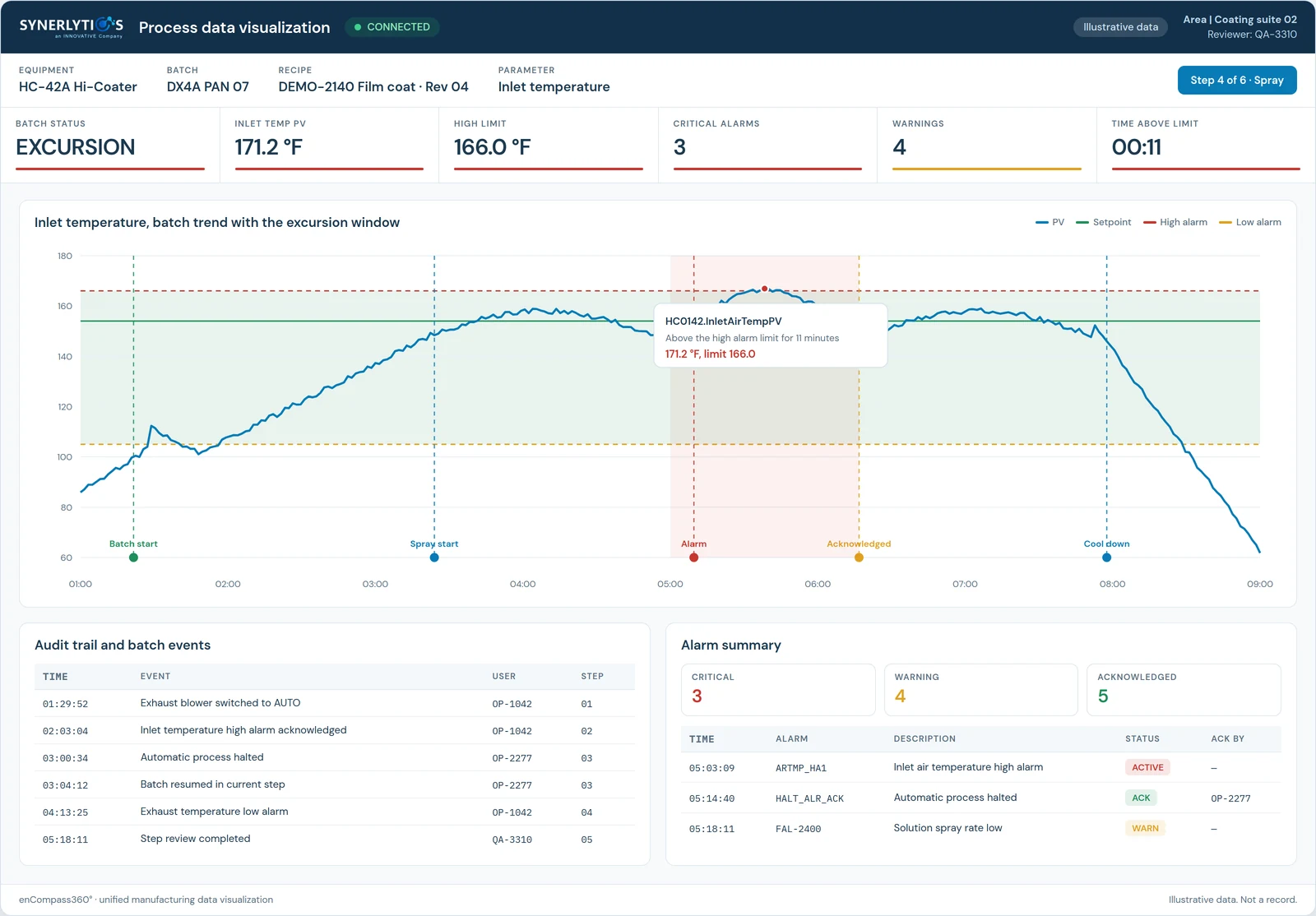
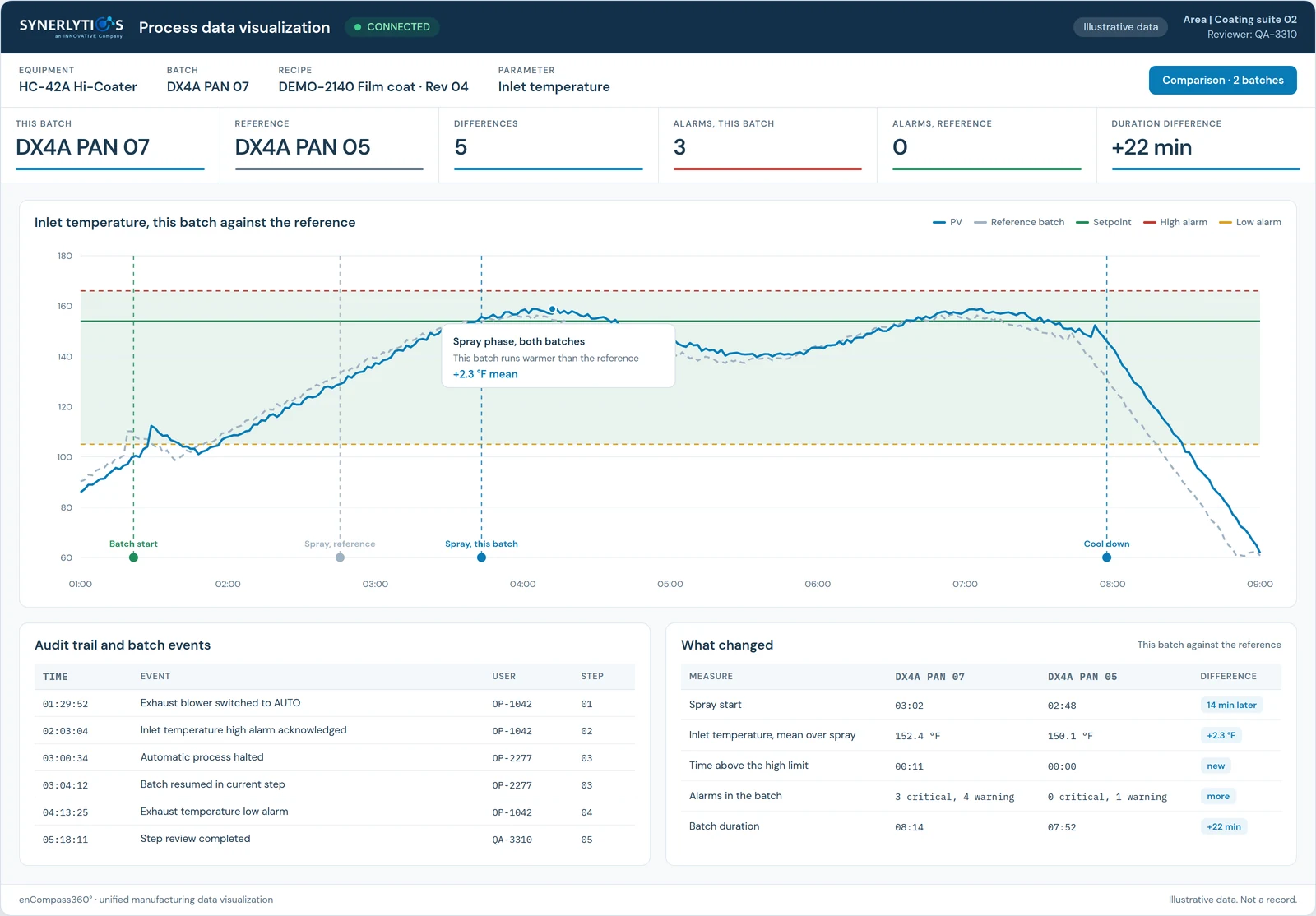
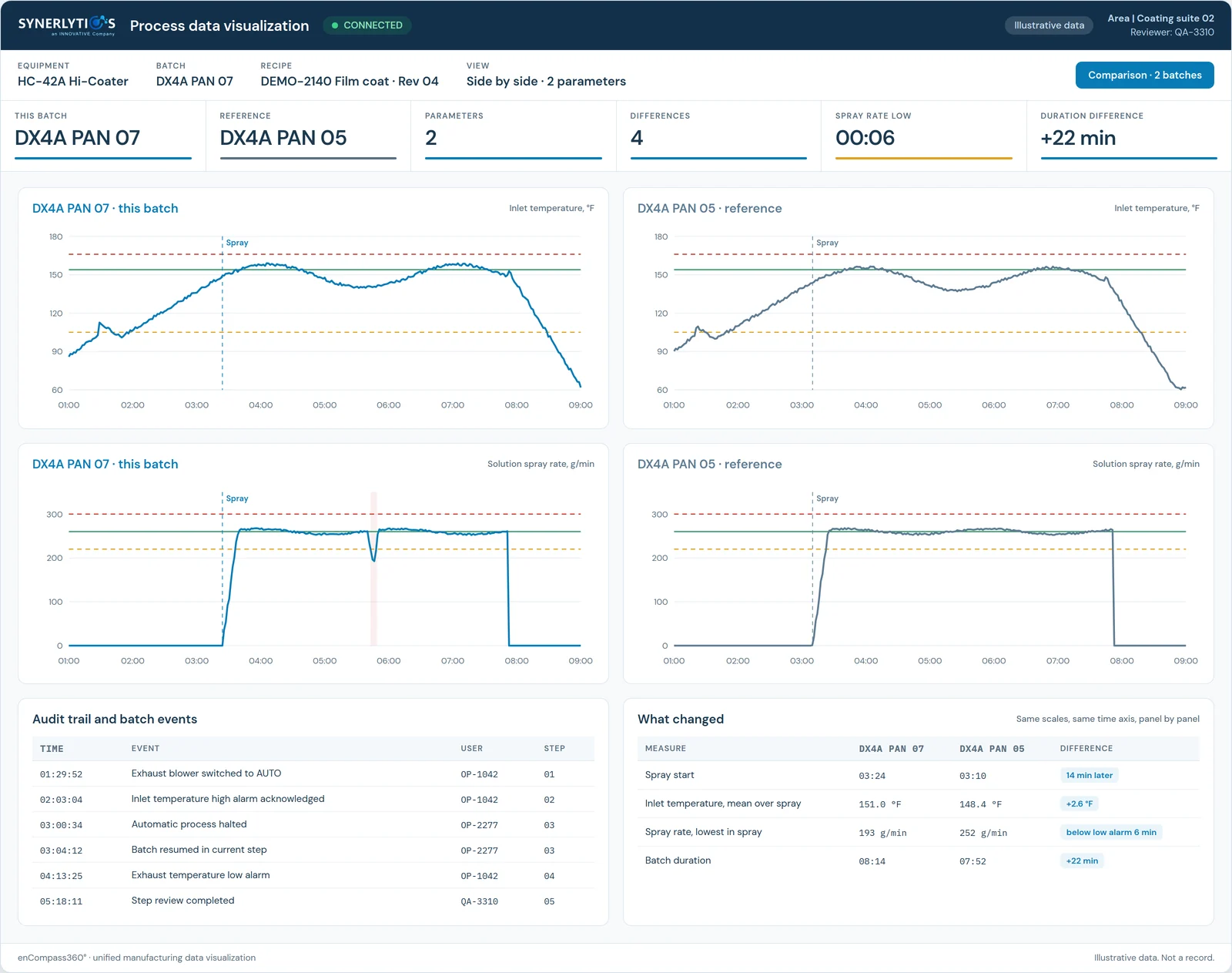
One design, whichever state the batch is in.
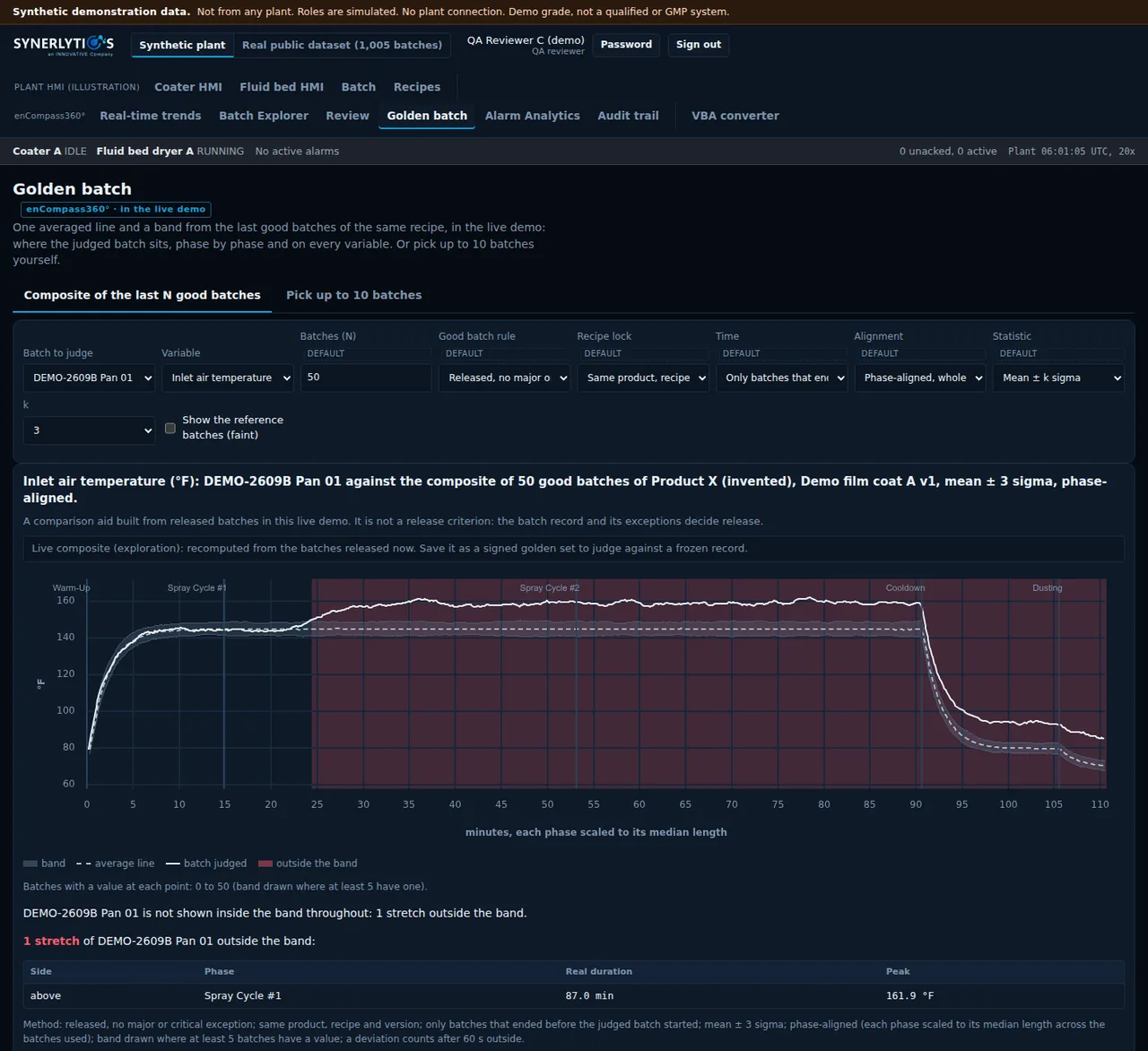
The same module, shown running, when a parameter leaves its limits, and against other batches of the same recipe: overlaid, side by side, or against a composite of your last 50 good batches.
In productionin the installed product todayIn developmentcoming in the browser versionLive demoshown on the tour, synthetic data

How it works
Three steps. The review layer never writes to your systems.
- It readsEach system keeps its own records and its own audit trail. The review layer reads them where they sit and writes nothing back.
- It lines them upEvery reading is placed on one time axis for the batch: the process trend, the alarms and events, the process steps, the alarm limits and the batch metadata.
- It shows the batchOne batch on one trend, with its process steps, alarm limits, alarms and batch data layered where they belong. Compare it to the best batch you ever ran.
What goes on the axis
Six sources. One batch. One time axis.
Each source stays in its own system of record. The 21 CFR 211 section each one relates to is beside it.
- 01Process trendHistorian data, read in place: AVEVA PI, Proficy Historian211.188
- 02Alarms and eventsFrom the control system, placed at the moment they fired211.100
- 03Process stepsFrom the batch system211.186
- 04Process alarm limitsFrom the MES and recipe system211.110
- 05Batch metadataFrom the batch database211.188(b)(3)
- 06Room conditionsTemperature, relative humidity and differential pressure in the room for the same window. From the building management system your plant already runs, through an integration set up for your site.211.46
What you can do with it
The investigation, start to finish.
Batch against batch
One-touch batch comparison: this batch beside the best one you ever ran. Retrieve data by batch or by date range, one batch or many.
Every source on the trend
Rich, interactive visualizations that layer data from multiple, disparate sources and vendor systems: the historian, the alarms, the process steps and the alarm limits.
Plant-wide access
Access to manufacturing and packaging line data from anywhere in the plant: any approved user on your plant network opens the batch without walking to the machine that holds it. Comes with the browser version.
Reports from every source
Centralized reporting as HTML and PDF. Reports can be emailed automatically where your network allows outbound mail.
Recipes and work instructions
Central recipe editing with full revision history, approval and an audit trail of every change; production only sees approved, released recipes. Recipe management is a separate module from the read-only batch review. Electronic work instructions are in development.
Video tied to the batch record
Cameras on the line, indexed to the same time axis, for regulated batch investigation: drag a cursor along the trend and up to six camera views play from that moment. In development for the browser version. How it will work
A trend line is not an answer.
Plenty of systems will draw you a trend. That part is not hard. The question an investigation actually has to settle is why the line moved, and that answer lives in four other systems. enCompass360° lets you click the trend and ask.
What was this alarm?
Click the point where the process turned. See the alarm behind it, when it fired, who acknowledged it and how long it stayed open.
Alarms, from the control system.Did it change the batch?
Put the alarm against the process it touched and see whether the temperature started to fall after it, or before it.
Cause and effect on one timeline.What did the operator do?
Blowers switched on by hand, a manual spray, a step repeated. Actions taken during the batch that affect the batch, on the same screen as their result.
Operator actions, in context.How often does this happen?
How many alarms in this batch. How many this month. How long they take to resolve. The pattern behind the one event.
Summary reporting across batches.
Two people need the same batch, differently
Quality needs a record they can file, produced the same way every time, at the end of every batch. The engineers and scientists do not want a report at all. They want to move through the data while the question is still open. The same batch has to serve both.
And they should not have to gown up for it
Reading a batch should not mean gowning up, walking into the suite and hoping the machine in there still has its history. It should mean opening the batch at your own desk. That is what the browser version, in development, is for.
Batch at a Glance
One batch, every layer, one trend.
Batch at a Glance puts a single batch on a single trend and layers every source where it belongs, so a reviewer reads what happened, when, and what was happening around it, without going system to system.
- Process stepsFrom the batch system.
- Process alarm limitsFrom the MES and recipe system.
- Batch metadataFrom the batch database.
- Historian analog dataAVEVA PI and Proficy Historian.
- Trend dataset informationAnd the method used to retrieve the data.
- SCADA alarms and eventsOn the trend, in the grid and in pop-ups.
Video beside the data
Drag the cursor. See the line at that moment.
Most investigations stop at the trend: the reading changed, and nobody can see why. enCompass360° is adding video to the same time axis as the batch record. Move the cursor along the historian trend and up to six camera views play from the same second, so the reviewer sees the equipment and the room at the moment the reading changed.
- Scrub the trendDrag the cursor along a batch's historian trend; every camera follows it.
- Jump from an alarmOpen an alarm or an audit-trail entry and go straight to the video of the room at that moment.
- See inside the equipmentA camera at a coating pan's spray guns sits beside the spray-rate trend, so the spray pattern can be read next to the parameter it affects.
Coming in the browser version
The next generation runs in a browser, not on a workstation.
enCompass360° today runs on a virtual machine on your server, opened by remote desktop. The next version brings the same record to any browser on the plant network, and adds the tools our customers ask for first.
In development
- Delta cursortwo cursors, the difference read out
- Magnifierdrag to zoom on one stretch of the trend
- Click any pointbatch number, recipe, who was logged in
- Process steps on the trendwarm-up, spray, cool-down, with recipe setpoints beside actuals
- What changeda plain-language summary of the differences between two batches
- Six cameras beside the parametersthe operators and the line at the moment of the excursion
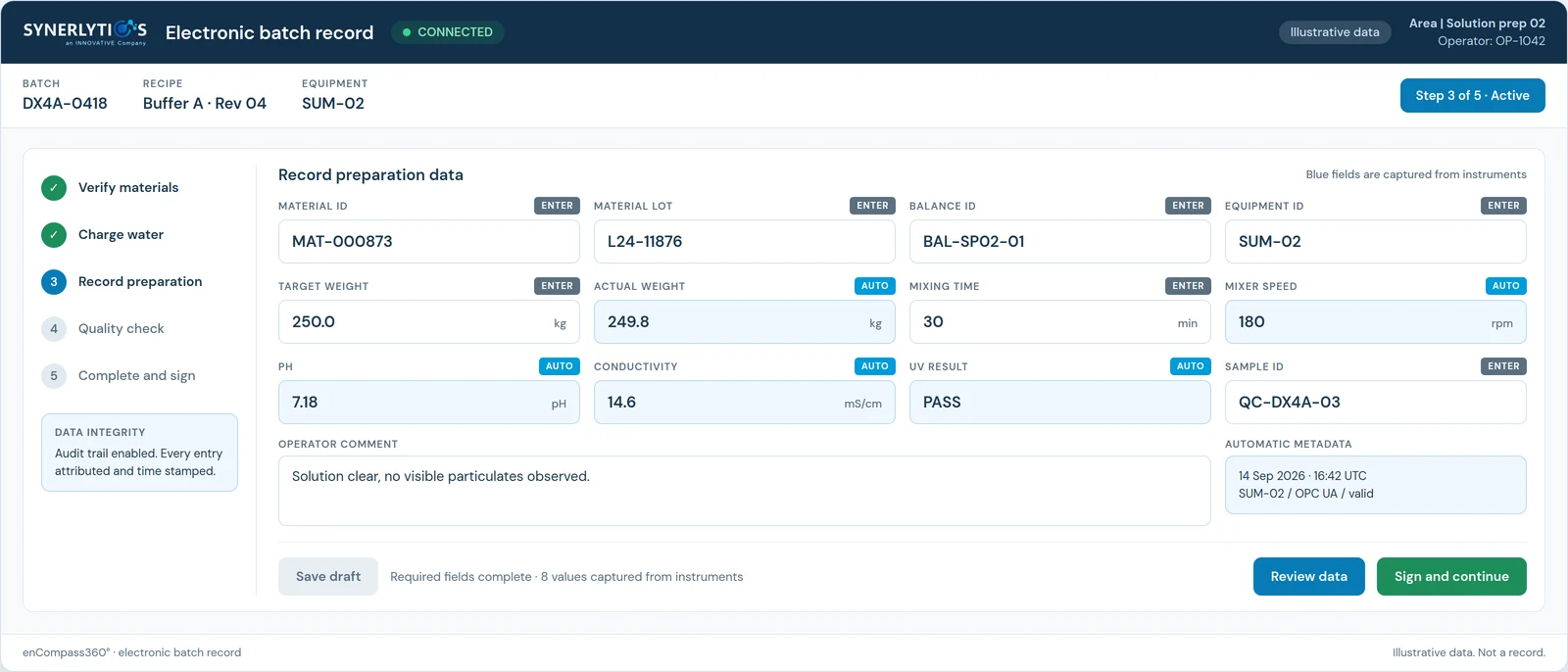
On your network. The batch review is read-only.
Deployed on your own network, on the floor or in the office. A quality reviewer compares batches at a workstation; maintenance on a tablet on the floor comes with the browser version, in development. The review layer reads every source in place and writes nothing back.
Connections, direction, install footprint and support are set out for your IT and OT team on For IT and OT. Part 11 controls and validation are on For Quality.
Next step
See one batch, on one screen.
A live walkthrough of enCompass360° on a film coating line with synthetic data, with the people who build it.